VSCode lost it's Verse-atility - Fixing Verse Linting
"Help! My VSCode/Cursor Lost Its Verse-atility: A Guide to Fixing Verse Linting"
Is your VSCode/Cursor acting like it's never heard of Verse? Are those comforting red squiggles missing in action? Let's get your development environment back to being as judgy as a Fortnite lobby.
*
The Symptoms
If you're staring at pristine, squiggle-free code that you KNOW has more issues than a default dancing Jonesy, you're probably experiencing the dreaded Verse linting outage. The key indicators are:
- Empty Problems window (as lonely as Retail Row at 3am)
- No syntax highlighting
- Code that looks perfect (we all know that's suspicious)
The Diagnosis
The issue usually stems from our Verse Language Server Protocol (verse-lsp) taking an unexpected vacation. Here's how to investigate:
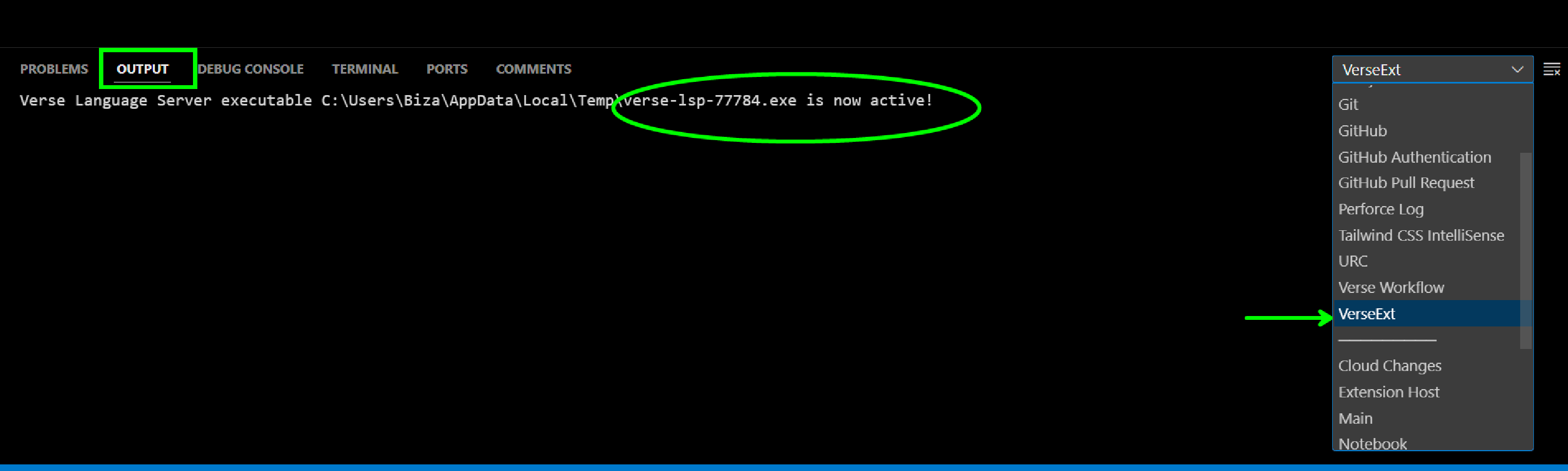
- Check the Output Tab Open VSCode's Output panel (View > Output) and select "VerseExt" from the dropdown. You should see verse-lsp-latest.exe in the logs. If it's missing, it's like trying to build without materials - ain't gonna work.
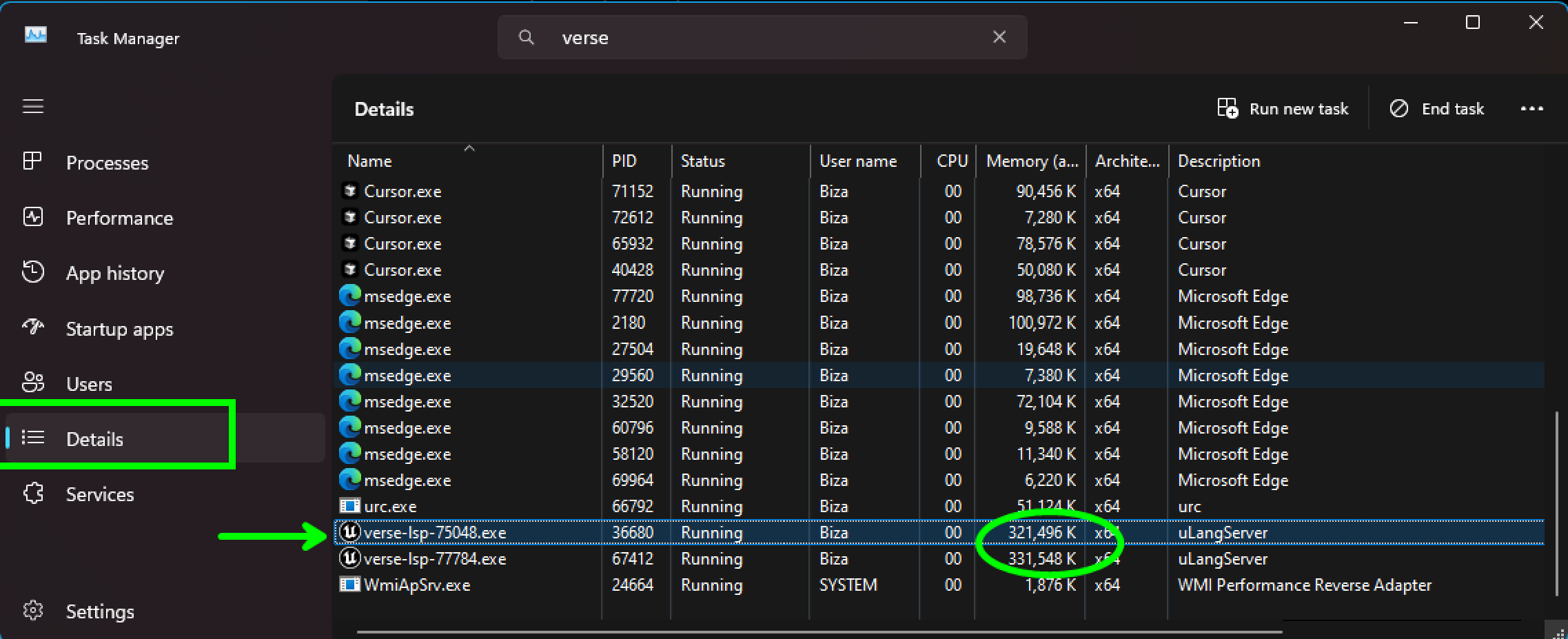
- Task Manager Reconnaissance Open Task Manager and look for verse-lsp-latest.exe. If you're using both VSCode AND Cursor (you overachiever, you), you might see multiple instances. That's normal - they're like squadmates, each doing their own thing.
workspace - 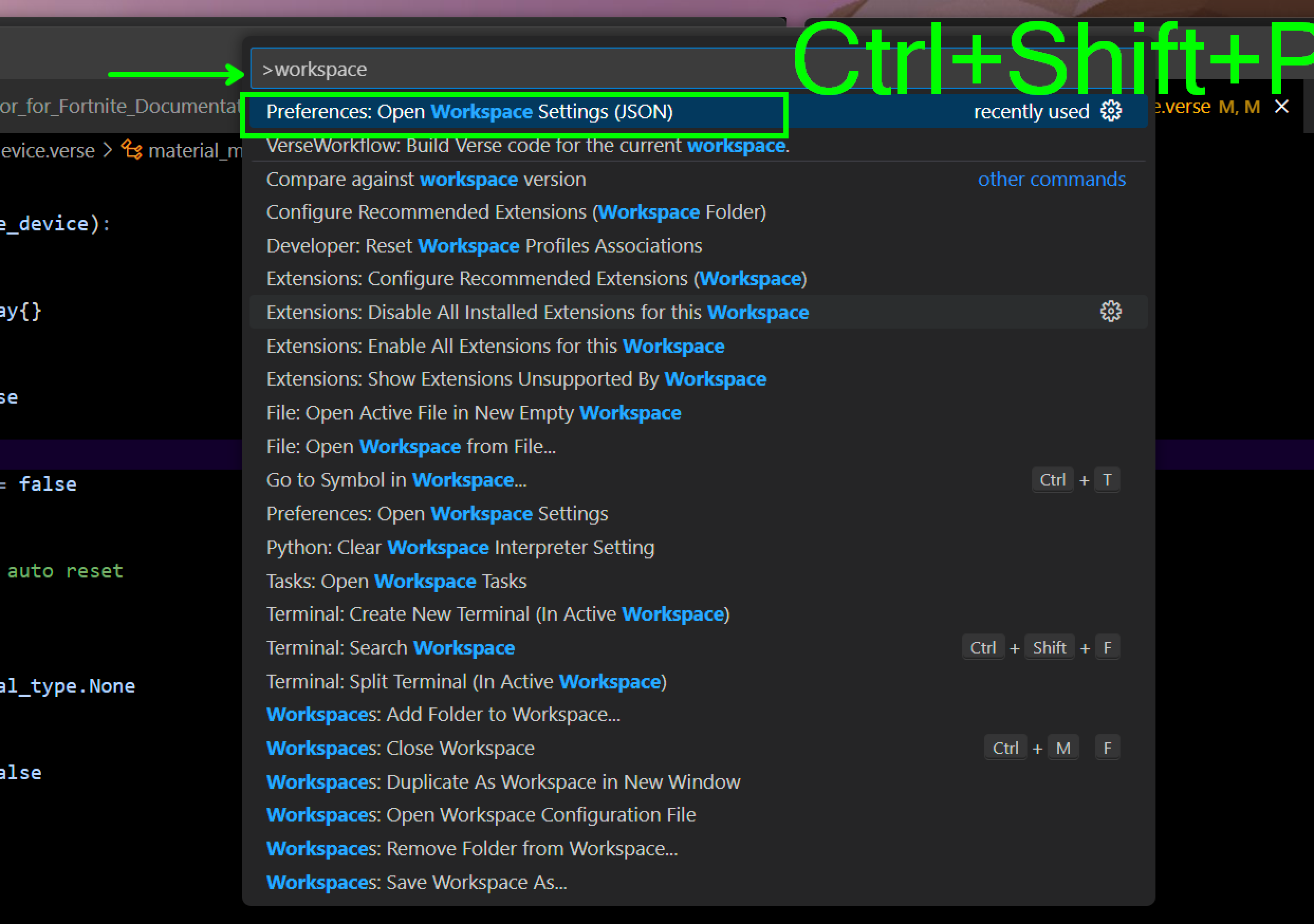
The Cure
Time to hit this bug like a well-placed pickaxe swing. Here's your step-by-step healing potion:
- Open Workspace Settings Press
Ctrl+Shift+P(orCmd+Shift+Pfor Mac users) and type "Open Workspace Settings (JSON)". Select it faster than you'd grab a gold SCAR.
- Configure Your Settings Your workspace settings should look something like this:
{
  "launch": {
    "configurations": [
      {
        "name": "Verse Debug",
        "type": "verse",
        "request": "attach",
        "debugServer": 1961
      }
    ],
    "version": "0.2.0"
  }
}
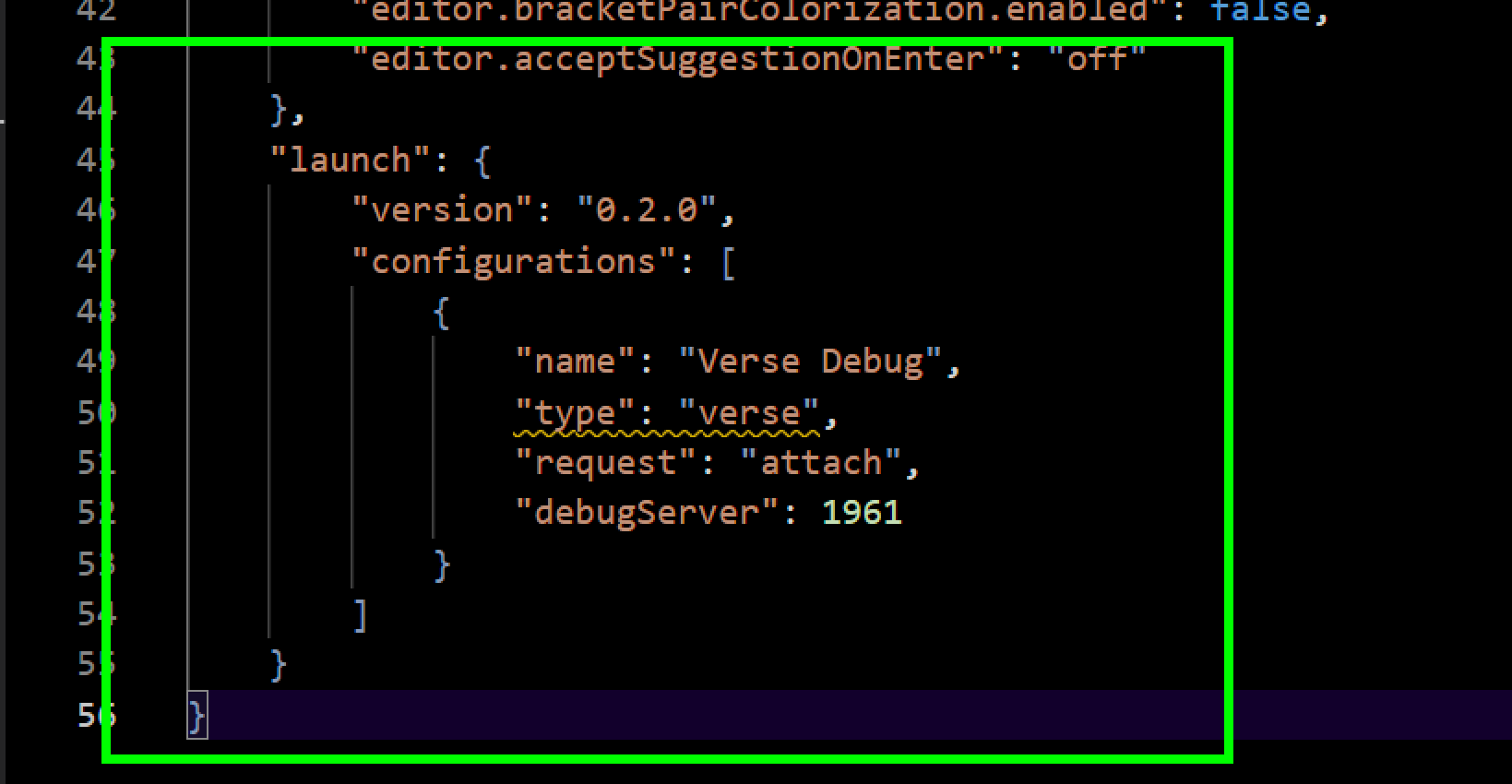
The debugServer port (1961) should match your current UEFN version. Think of it like making sure you're on the right game server - you wouldn't want to load into Save the World when you're trying to play Battle Royale!
The Prevention
To keep your environment healthy and your code properly criticized:
- Always open your UEFN project through the Epic Games Launcher
- Make sure you're running the latest version of VSCode/Cursor
- Keep your Verse extension updated
- Don't mess with the verse-lsp process (it's more sensitive than a sweat in zero-build mode)
Now you should have proper errors in your code and under your problems Window
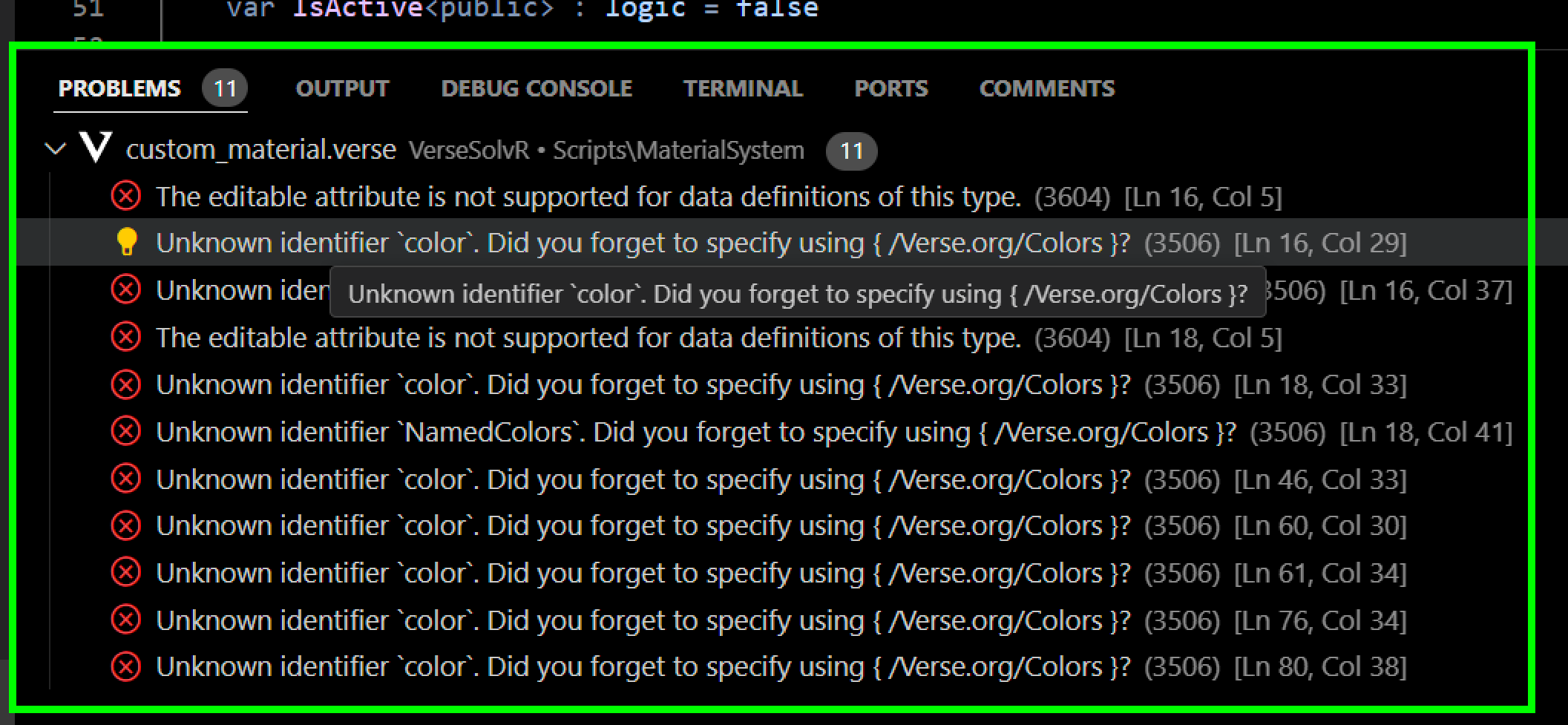
The Plot Thickens: Special Cases & Common Pitfalls
The OneDrive Dilemma
If your project folders are living in OneDrive, they're about as useful as a grey pistol in the final circle.
Since UEFN version 31.20, there's actually a warning about this, but here's the deal: OneDrive and UEFN go together like Peely and a banana slicer. The remote storage access is about 10x slower than your local SSD, which can cause our verse-lsp to throw in the towel.
Correct Project Paths by OS:
- Windows 11:
- ❌
C:\Users\YourName\OneDrive\Documents\UnrealEngine(Will break faster than a zero-build sweaty's building habits) - ✅
C:\Users\YourName\Documents\UnrealEngine(This is the way)
- ❌
- Windows 10:
- ✅
C:\Users\YourName\source\repos\UnrealEngine
- ✅
The Fresh Start Approach
Sometimes your VSCode project needs a reset like a fresh match. If you've created your .verse files outside of UEFN (you rebel, you), the verse server might be giving you the cold shoulder. Here's the proper way:
- Launch UEFN first (yes, order matters, like landing before looting)
- Create your new project through UEFN
- Add your verse files through UEFN's interface
- Use the "Verse" button in UEFN to launch VSCode
This ensures the verse server initializes properly, like making sure your drop zone has actual loot.
The Extension Checkup
If you're still not seeing those beautiful red squiggles:
- Check your Verse extension version (currently at
1.0.30426467or newer) - Verify the extension folder exists:
%userprofile%.vscode\extensions\epicgames.verse-1.0.xxxxx - If things look sus, try this nuclear option:
- Delete the entire extension folder
- Reinstall using the
.vsixfile - Restart VSCode (and maybe do a little dance)
The Pipeline Problem
Sometimes the communication pipeline between UEFN and VSCode breaks down worse than team communication in Fill matches. If this happens:
- Check the Output tab for "VerseExt" messages
- Verify verse-lsp.exe is running in Task Manager
- If either is missing, try the old reliable:
- Close VSCode
- Close UEFN
- Reopen UEFN
- Launch VSCode through UEFN's Verse button
- Cross your fingers (optional but recommended)
Remember, just like knowing the perfect time to pop a shield, timing matters when launching these applications. UEFN first, VSCode second - this is the way.
Still Having Issues?
If your linting is still ghosting you harder than your random duos partner:
- Restart VSCode/Cursor
- Check for any conflicting extensions
- Verify your UEFN installation
- Consider a clean reinstall (the programming equivalent of "have you tried turning it off and on again?")
Remember, a properly configured development environment is like a well-organized loadout - it makes everything easier and more effective. Now get back out there and make something amazing! Just don't forget to thank your linter for keeping your code cleaner than a Creative island on day one.
P.S. If all else fails, you can always blame it on lag. Works every time, 60% of the time.
Related Posts

Create Interactive UI: Verse Fields Events Now Available in UMG
Learn how to create UI widgets that trigger events in Verse using the new Verse fields event type in UMG.
BizaNator
Obs did not shutdown properly?!
Fixing OBS shutdown popup, do you want to run in safe mode, NO I don't want you to ask me again!

BizaNator
Verse Function Renaming: The Art of Clean Code Through Smart Aliases
A comprehensive, humor-filled guide to function renaming in Verse, complete with backward compatibility tricks and practical solutions.