🎮 Leveling Up Your Samsung Odyssey Neo G9 Setup: FancyZones for Fortnite UEFN Developers 🎥
🎮 Leveling Up Your Samsung Odyssey Neo G9 Setup: FancyZones for Fortnite UEFN Developers 🎥
🌟 A Big Screen, A Bigger Workflow 🌟
Welcome to the ultra-wide dreamland of the Samsung Odyssey Neo G9 , the 57-inch pixel-pumping powerhouse that's here to make your Fortnite UEFN projects and programming life as smooth as a victory royale. But let’s be real: if you’re not optimizing this beast of a screen, you’re about as efficient as a bot trying to crank 90s. That’s where FancyZones swoops in like a glider into Tilted Towers—ready to take your productivity to pro levels. 💻✨
FancyZones, a magical tool from PowerToys, lets you carve up your screen real estate faster than a sweaty squad claiming high ground. And for your G9? It’s the perfect partner in crime. Let’s dive in and show you why this setup is your ticket to creative domination. 🎨🛠️
🔍 Why FancyZones? (AKA "Why Should You Care?")
Here’s the deal: without FancyZones, you’re wasting the glorious potential of your ultra-wide setup. By splitting your screen into functional zones:
- 🎥 Screen Recording Nirvana : Tools like OBS or Camtasia can perfectly capture your central 4K zone, ensuring your YouTube tutorials look crispy and not weirdly stretched. Your viewers will thank you.
- 💬 Multitasking Magic : Keep Discord, Spotify, and browser tabs neatly in their own lanes while Unreal Engine takes center stage.
- 🍕 Couch Potato Proof : Nobody can complain about unreadable text when you pair this setup with PowerToys ZoomIt . Seriously, zoom in on fields, highlight elements, and make sure even the guy shoveling pizza on his couch can follow along. Check out our guide on ZoomIt for the ultimate how-to-video arsenal. 😉
🛠 Installing FancyZones (Because We All Need a Power Move)
Here’s how to get started:
- Install PowerToys :
- Using
winget: Open PowerShell and typewinget install --id Microsoft.PowerToys -e. - Or download directly from PowerToys GitHub.
- Launch PowerToys and select FancyZones from the sidebar.
- Enable FancyZones : Toggle the switch and you’re good to go. 🎉
🎨 Setting the Stage: Your Ultimate FancyZones Layout 🎨
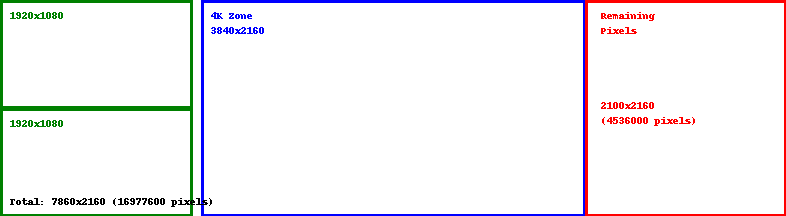
Picture this: a sleek, ultra-wide 7860x2160 canvas divided into a perfectly optimized layout. Here's the setup that will make your Odyssey Neo G9 shine:
- The "Main Event" Zone : Smack dab in the center is a glorious 4K zone (3840x2160) . Use this for UEFN, Unreal Engine, or your primary IDE. Perfectly sized for screen recording to upload 4K tutorials on your YouTube channel, or just to flex on your fellow devs. 🖥️
- Double Trouble Stacks on the Left : Two vertically stacked 1920x1080 zones on the left side. Ideal for Discord chats, documentation, or just leaving your Spotify playlist open to get those retro Vaporwave vibes flowing. 🎶
- Right Zone: The Leftovers : The remaining 2100x2160 pixels form a tall, single column on the right—a cozy home for your file manager, browser, or that random JSON parser you keep needing every five minutes. 📂
Below is a diagram showcasing this layout for better visualization:
⚙️ FancyZones: The Power Move Setup ⚙️
Here’s how to make this layout a reality:
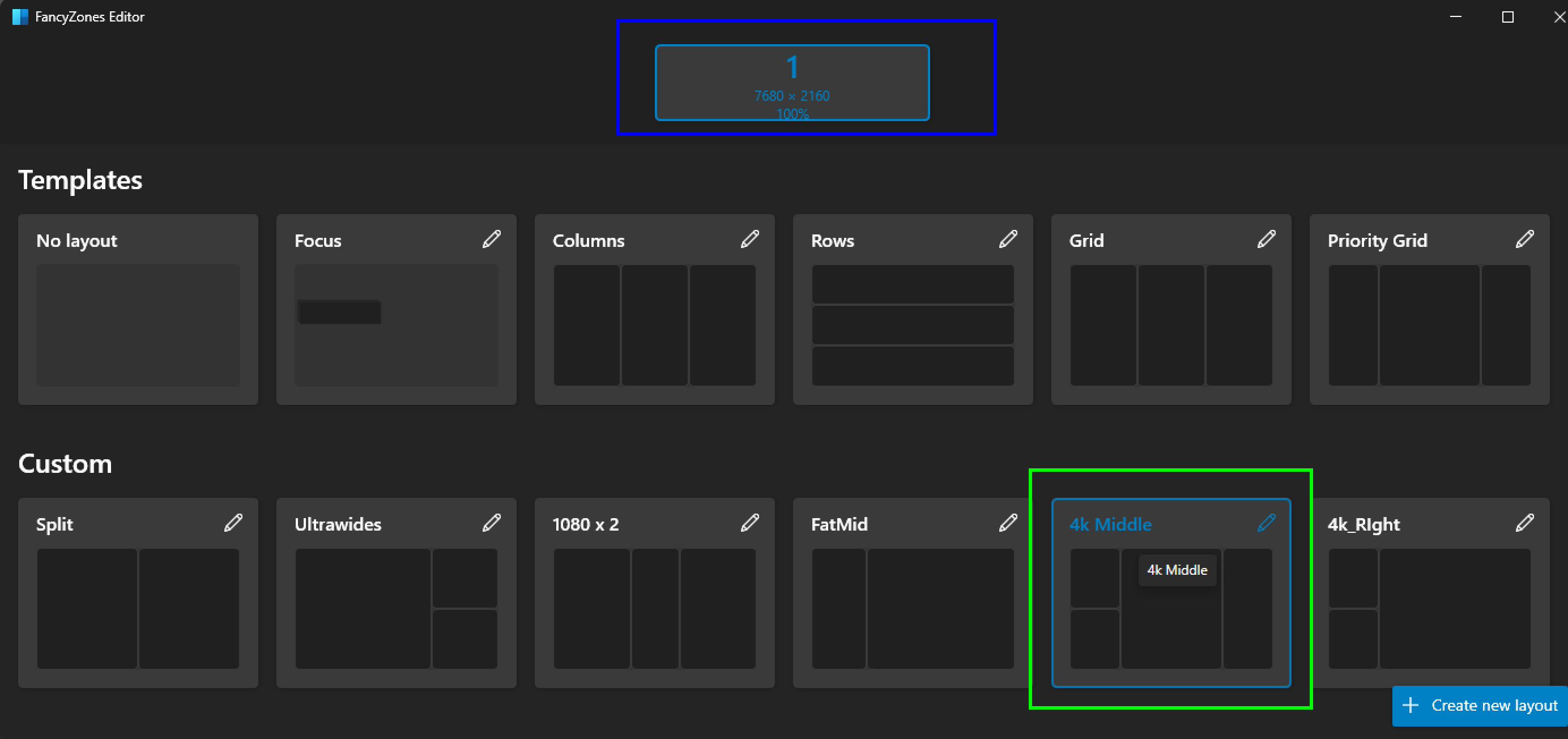
- Open FancyZones Editor : Hit
Win + Shift + ‘to launch the editor. (Don’t panic, the ‘ key is the one you never use - next to the 1.) - Create a Custom Grid :
- Divide your screen into three sections.
- Make the left section two vertically stacked zones of 1920x1080 .""
- Set the center to 3840x2160 for your 4K zone.
- The right gets the leftover 2100x2160 column.
- Hotkeys Setup :
- Assign hotkeys for quick layout switches in the FancyZones Editor under "Custom Layouts."
- Use
Win + Ctrl + Alt + [Number]to quickly snap to your custom grid. 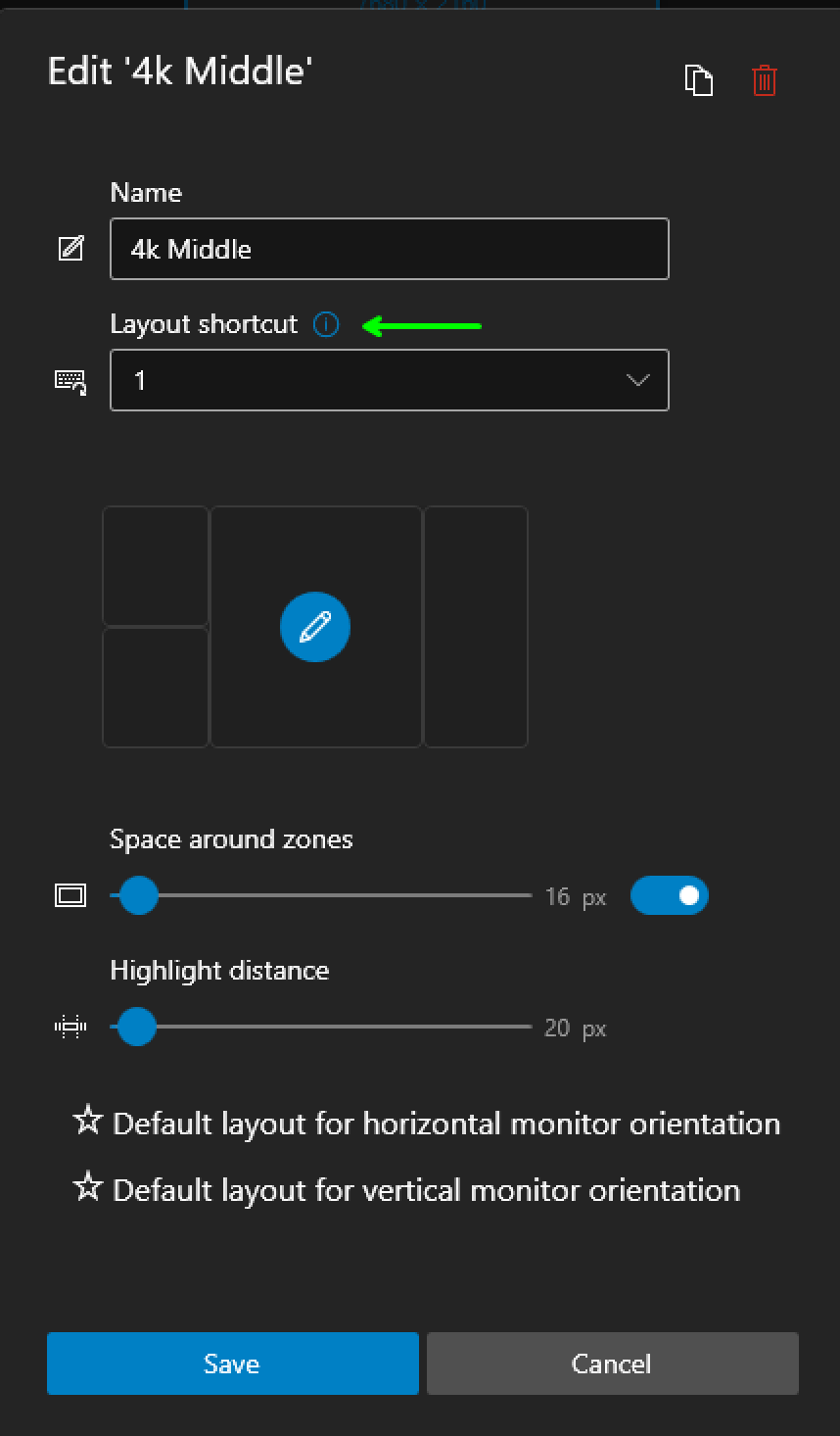
- Zone Behavior Settings :
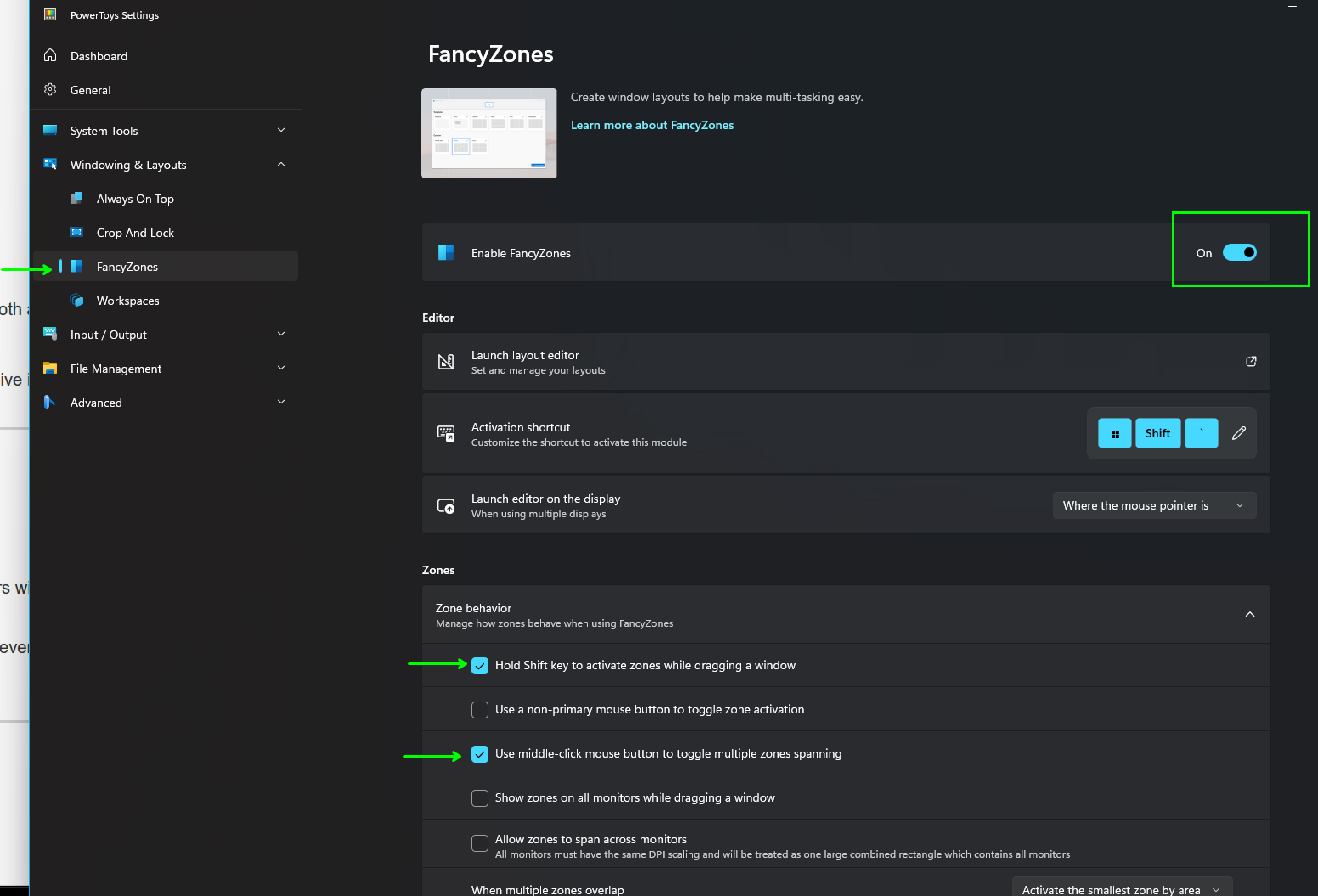
- Enable "Hold Shift Key to Activate Zones While Dragging." (Or as we call it, the "grab and drag" power-up.) 🕹️
- Turn on "Use Middle-Click to Toggle Multiple Zones Spanning." (For when you want to go full multitask mode.) 👾
- Check "Keep Windows in Their Zones When the Screen Resolution Changes." (Because pop-ups in random places are so Chapter 1.) 💡
- Activate "Allow Child Windows Snapping" for apps like Task Manager. Yes, child windows deserve some love too. 🍼
- Apply the Layout : Drag and snap windows to their new homes. Marvel at your own genius. 🌟
💡 A Day in the Life of a BrainDead Dev 💡
Imagine this: you’re working on the next chapter of "City of Brains," tweaking the lighting in your Flamingo nightclub. The center 4K zone displays your UEFN viewport in glorious detail. Discord’s blowing up on the left, where you’ve stacked chats and documentation. On the right, you’ve got a browser open, googling "Why is Verse being weird again?" Life’s good. You’re in the zone—literally. 😎
🌴 Styling with Braindead.tv Colors 🌴
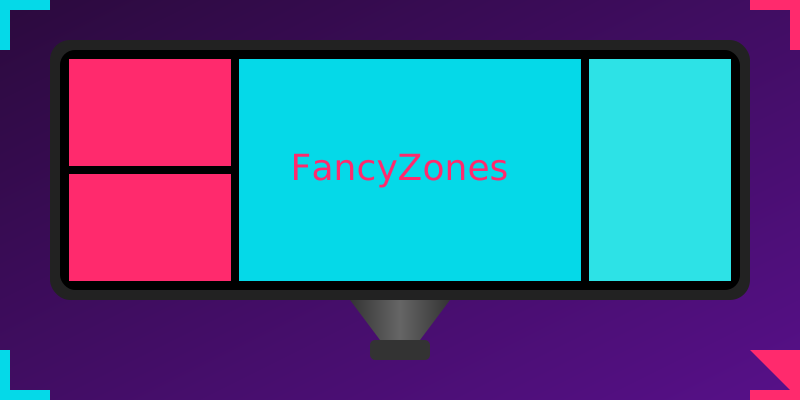
We’re all about that retro beach-chic vibe, so why not carry it into your workspace? Set your FancyZones colors to match Braindead.tv’s aesthetic—neon pinks, cool blues, and the occasional hint of mint green.
Because even your pixels should party like it’s the 80s. 🌈
To truly bring it home, here’s a styled image inspired by Braindead.tv:
🎬 Lights, Camera, Action 🎬
Ready to make your Samsung Odyssey Neo G9 the ultimate Fortnite UEFN workstation? FancyZones and this setup make creating tutorials, managing workflows, and being the coolest dev around a piece of cake. Don’t forget to pair this with PowerToys ZoomIt to highlight those hard-to-read fields while recording. Because the guy on the couch shoveling snacks deserves to see your genius too. 🍕🎮
Remember: in "City of Brains," nobody’s judging your zones—but IRL? Yeah, they are. So make them awesome. 💪